
Pornify Team
@pornify · September 10, 2026
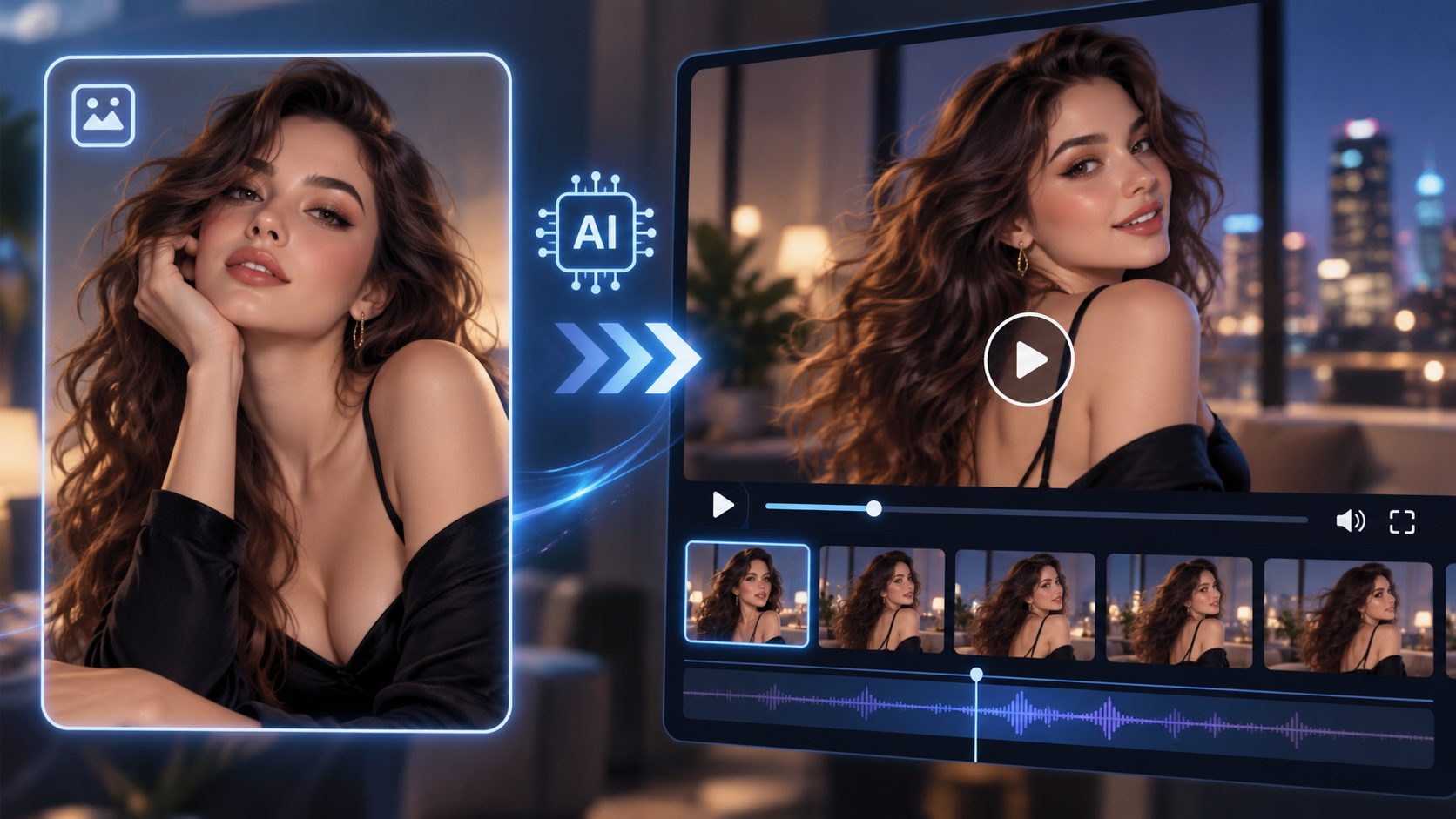
Learn how to turn a static AI-generated image into an AI video using image-to-video tools. This guide covers better motion prompts, camera movement, consistency tips, and simple ways to create smoother, more realistic results.
How to Turn an AI Image Into an AI Porn Video
Creating an AI image is one thing. Making that image actually move — while keeping the same character, style and overall look — is where things get much more interesting.
AI image-to-video tools can take a single generated picture and transform it into a short animated clip. Instead of asking an AI model to invent an entire video from scratch, you give it a starting image and tell it what you want to happen next.
That can make it much easier to control the appearance of your character and create the exact scene you have in mind.
In this guide, we'll go through how to turn an AI-generated adult image into an AI video, how to write better motion prompts and how to avoid some of the most common AI video mistakes.
What Is AI Image-to-Video?
Image-to-video AI takes a static picture and generates new frames around it to create movement.
Your original image effectively becomes the starting point for the video.
The AI already knows what your character looks like, what they're wearing, where they're positioned and what the environment looks like. Your next job is mainly to describe what happens after that first frame.
This is one of the biggest differences between text-to-video and image-to-video generation.
With text-to-video, you need to describe almost everything.
With image-to-video, the image does much of that work for you.
That means your video prompt can concentrate on:
Character movement
Facial expressions
Body movement
Camera movement
Background movement
Speed and pacing
What should remain unchanged
The result is generally far more controllable than simply typing a long description into a text-to-video generator.
Step 1: Create a Good Starting Image
Your final video is heavily influenced by the image you start with.
If your starting image contains strange anatomy, inconsistent lighting or distorted details, turning it into a video can make those problems even more noticeable.
So before trying to animate anything, create the best possible source image.
For adult AI content, this usually means creating a fictional adult character with:
A clearly visible subject
Natural anatomy
Good facial detail
Consistent lighting
A clean background
Enough space around the character for movement
The correct aspect ratio for your intended video
For example, a tightly cropped image can look great as a picture but give the video model very little room to create camera movement.
If you know you eventually want a wider video shot, generate the original image with that in mind.
Start With Pornify
This is where Pornify can form the first part of the workflow.
Instead of immediately trying to generate a complicated video, use Pornify to create the character, style and composition you want first.
Experiment with different generations until you have an image you're genuinely happy with.
Think of it as choosing the first frame of your movie.
Once the image looks right, you're ready to animate it.
Step 2: Choose an Image-to-Video Generator
You'll now need an AI video model or platform that supports image-to-video generation.
Most image-to-video interfaces follow a similar process:
Upload your starting image.
Enter a motion prompt.
Select your video settings.
Generate the clip.
Review the result.
Adjust your prompt and regenerate if necessary.
Adult-content policies vary significantly between AI platforms, so always check whether the service you're using permits the type of content you want to create.
Don't try to bypass a platform's rules.
Instead, choose tools that explicitly allow your intended use.
Step 3: Stop Describing the Image
This is one of the most common mistakes people make.
Imagine your starting picture already shows a woman standing beside a window.
You don't need a huge prompt explaining:
"A woman with long brown hair stands beside a large window in a softly lit bedroom..."
The video model can already see that.
Instead, tell it what happens.
For example:
The subject slowly turns toward the camera and smiles. Her hair moves naturally as she turns. The camera performs a slow push-in. Smooth, realistic movement.
That's much closer to how you should approach an image-to-video prompt.
Think like a director rather than an illustrator.
The image describes what exists.
The video prompt describes what moves.
Step 4: Keep Your First Movement Simple
It can be tempting to ask for ten different things to happen in a five-second clip.
Don't.
AI video tends to work better when each short generation has one main action.
For example:
Too complicated:
The character walks across the room, turns around, changes position, looks into the camera, moves toward the bed and the camera circles around her.
There are a lot of opportunities for something to go wrong.
Instead, break the scene into smaller moments.
Clip 1
The subject slowly turns toward the camera. Subtle natural body movement. Camera remains stationary.
Clip 2
The subject takes two slow steps forward while maintaining eye contact with the camera. Gentle handheld camera movement.
Clip 3
Slow camera push-in toward the subject. Natural breathing and subtle movement.
You can then combine clips during editing.
Simple clips are also much easier to regenerate when something doesn't look right.
Step 5: Control the Camera
One of the easiest ways to make an AI-generated clip look more like an actual video is to specify what the camera should do.
Useful camera instructions include:
Static camera
The camera stays completely still while the subject moves.
Slow push-in
The camera gradually moves closer to the subject.
Slow pull-back
The camera gradually moves away.
Pan left / pan right
The camera rotates horizontally.
Tilt up / tilt down
The camera moves vertically.
Tracking shot
The camera moves alongside the subject.
Handheld
Introduces subtle natural camera movement.
Orbit
The camera slowly moves around the subject.
You don't need complicated filmmaking terminology.
In fact, clear instructions are often better.
For example:
The subject looks toward the camera with subtle natural movement. Slow camera push-in. Stable lighting and realistic motion.
That's already enough information for a strong first attempt.
Step 6: Tell the AI What Should Stay Consistent
One of the biggest problems with AI video is identity drift.
Your character can start the clip looking one way and gradually become someone slightly different.
Faces can change.
Hair can change.
Background objects can move.
Clothing can transform.
Limbs can sometimes behave strangely.
Because of this, it can help to include simple consistency instructions.
For example:
Maintain the same face, hairstyle, body proportions, environment and lighting throughout the clip.
Or:
Keep the character's appearance consistent. No changes to facial features or background.
You don't necessarily need a huge list of negative instructions.
Focus on the elements that matter most.
Step 7: Use Natural Movement
Another common problem is asking for too much movement.
Small movements can often look considerably more convincing than dramatic ones.
Things such as:
Breathing
Blinking
Looking toward the camera
Turning the head
Moving hair
Shifting body position
Small hand movements
Walking slowly
Subtle camera movement
can make a still image feel surprisingly alive.
Once you're getting consistent results, you can gradually experiment with more complicated motion.
Step 8: Generate Several Versions
Don't expect every AI video generation to work perfectly.
Even with exactly the same image and prompt, two generations can produce noticeably different results.
Generate several versions and compare them.
Look specifically at:
The face
Does your character still look like the original image?
Anatomy
Do hands, arms and body proportions remain believable?
Movement
Does the character move naturally or appear to slide around the scene?
Background
Are objects remaining where they're supposed to be?
Camera
Did the requested camera movement actually happen?
Ending frame
Does the final part of the clip remain usable?
Sometimes a generation will look excellent for the first four seconds before falling apart at the end.
If that happens, you don't necessarily need to throw the entire clip away. Simply trim the unusable section.
Step 9: Build Longer Videos From Short Clips
You don't have to generate an entire video in one attempt.
In fact, creating multiple short clips can give you much greater control.
Think of each generation as a shot.
You might create:
Shot 1: Establishing shot
Shot 2: Character turns toward the camera
Shot 3: Camera moves closer
Shot 4: Different angle
Shot 5: Close-up
Shot 6: Transition into another scene
Combine those clips in a video editor and you've suddenly turned several small AI generations into a much longer sequence.
This also lets you throw away individual generations that don't work without having to recreate everything.
A Simple AI Image-to-Video Prompt Formula
If you're struggling with prompts, try this structure:
Subject + movement + camera + pacing + consistency
For example:
The subject slowly turns toward the camera with subtle natural body movement. The camera gently pushes forward. Slow realistic motion. Maintain the same face, hairstyle, proportions, lighting and background throughout the clip.
You can then modify one element at a time.
Want more energy?
Increase the movement.
Want something more cinematic?
Change the camera.
Want better consistency?
Reduce the amount of movement.
The key is changing one variable rather than rewriting everything every time.
Why Does My AI Video Look Weird?
Even good source images can produce bad generations.
Here are some common problems.
The Face Changes
Reduce complex movement and camera rotation.
Strong angles can force the model to invent facial information that isn't clearly visible in your original image.
The Body Becomes Distorted
Try simpler movement.
Complicated interactions and large position changes require the model to generate much more new visual information.
The Character Barely Moves
Your prompt may be too vague.
Instead of:
Natural movement.
Try:
The subject slowly turns her head toward the camera and takes one step forward.
Give the model something visible to animate.
The Camera Goes Crazy
Use one camera instruction rather than several.
Instead of:
Pan left, zoom in and rotate around the character.
Try:
Slow camera push-in.
You can always create another shot afterward.
The Background Changes
Tell the model explicitly that the environment should remain fixed.
You may also get better results from source images with simple, clearly defined backgrounds.
Image-to-Video vs Text-to-Video for Adult AI Content
Both approaches have advantages.
Text-to-video is useful when you want AI to invent everything from scratch.
Image-to-video is better when you've already created a character or scene you like and want to maintain that appearance.
For anyone creating recurring AI characters, image-to-video can therefore be particularly useful.
Instead of hoping every new video generation produces the same character, you can establish their appearance with an image first and then animate that image.
Don't Forget Consent and Privacy
AI adult content should only involve fictional adults or consenting adults whose images you have permission to use.
Don't use someone's photos to create sexual deepfakes without their explicit consent.
Publicly available photographs don't automatically mean someone has consented to having their likeness used in adult AI content.
You should also check the laws that apply where you live and the rules of any platform where you intend to publish the resulting content.
From AI Image to AI Video
The easiest way to approach AI video is not to think about generating an entire movie.
Start with one great image.
Then make one thing move.
Get that working.
Create another shot.
Then another.
Once you start combining them, a single AI-generated image can become the starting point for an entire video.
And it all begins with getting that first frame right.
Create your starting image with Pornify, experiment until you've found the character and scene you want, and then start bringing it to life with image-to-video AI.